Igontek Phone for Pipedrive: installation and use
Last updated: 27 October 2026
Igontek Phone lets you make and receive calls from Pipedrive with IGONTEK's cloud PBX. Calls are made from the browser, with no desk phone, in a window that stays open while you move around Pipedrive. Every call is logged in the person's history, with its recording when the call is recorded. The phone's interface is in Spanish.
Requirements
- Be an IGONTEK customer with a cloud PBX extension. If you don't have one yet, write to info@igontek.com.
- A Pipedrive account (web version) that allows installing apps.
- An up-to-date browser (Chrome, Edge or Firefox), a microphone and speakers or a headset.
1. Install the app
- Open Igontek Phone in the Pipedrive Marketplace, signed in with the Pipedrive account where you want to use it, and click Install now.
- Pipedrive shows the company and user the app will be installed for and the permissions it requests. Check that the company is correct and click Allow and Install:
- Access to basic information: required for every Pipedrive app.
- Contacts: Read only: to show the person's name during the call and link calls to their record.
- Phone calls integration: to log calls, their duration and their recording.
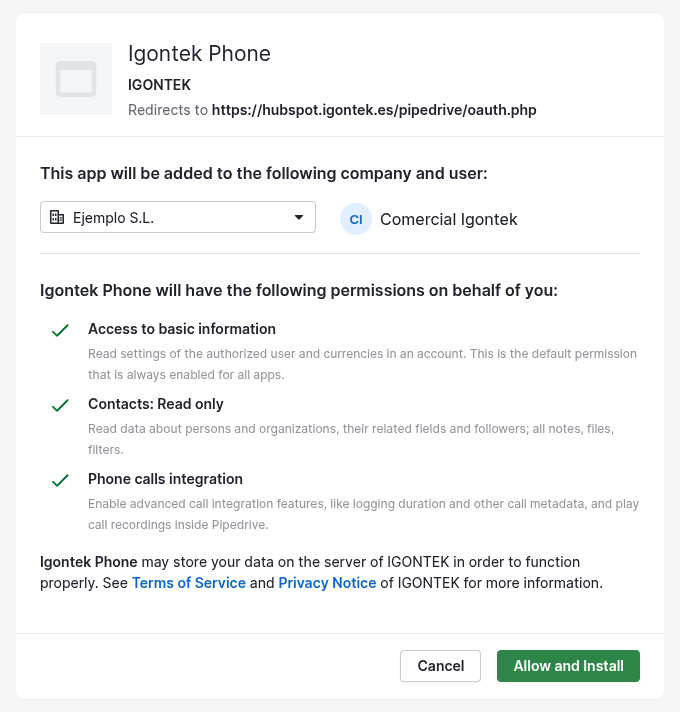
Permissions requested by Igontek Phone (sample data). - Pipedrive takes you back to your account. Igontek Phone appears in the top bar, under the apps icon.
2. Set up
- In Pipedrive go to Settings → Tools and apps → Phone calls. Under Default calling app choose Igontek Phone and click Save settings. Each user does this in their own account.
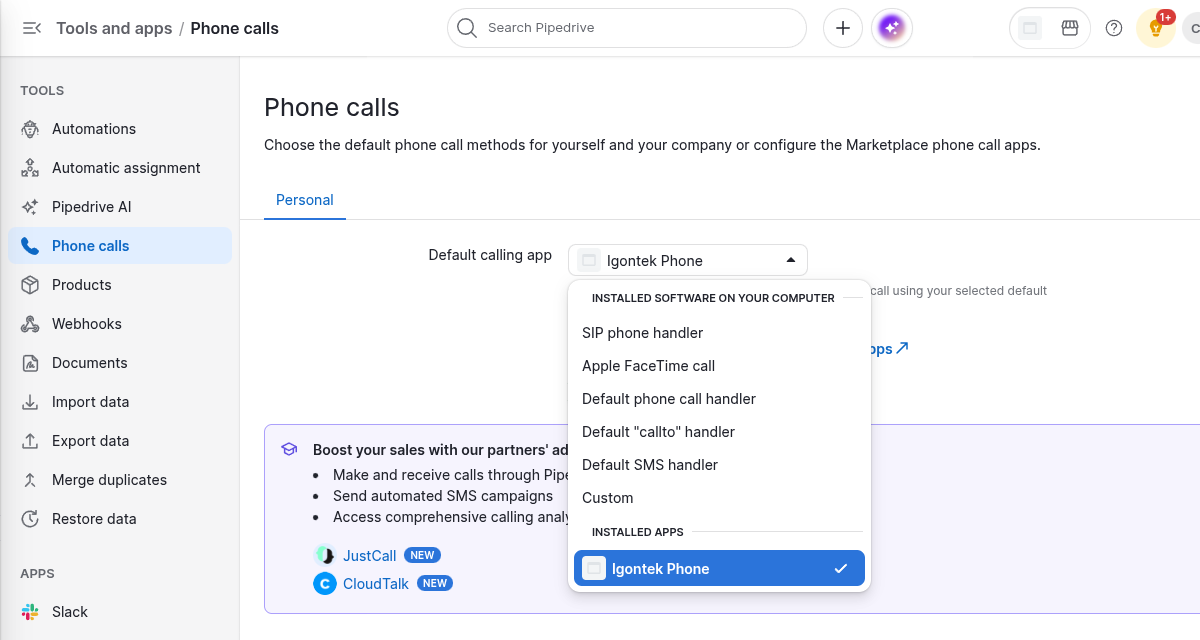
Igontek Phone as the default calling app. - Open Igontek Phone from the top bar icon. Type your email and we'll send you a sign-in link, or click Entrar con extensión y contraseña (sign in with extension and password).
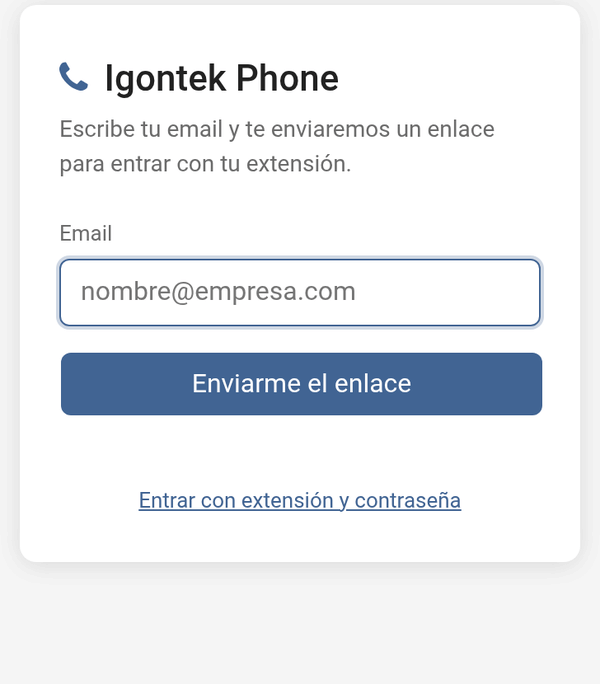
Signing in to Igontek Phone. - When the browser asks, allow the microphone.
In the phone's Ajustes (Settings) tab you can turn on Grabar todas las llamadas (record all calls), call waiting, do not disturb and auto-answer, and sign out.
3. Use
Call
On a person, organization or deal, hover over the phone number and click the call button. The first time, Pipedrive shows a menu with the chosen app: click Open app. From then on the button calls directly with Igontek Phone. You can also dial any number on the phone's keypad, or click a call in the phone's history to call that number again.
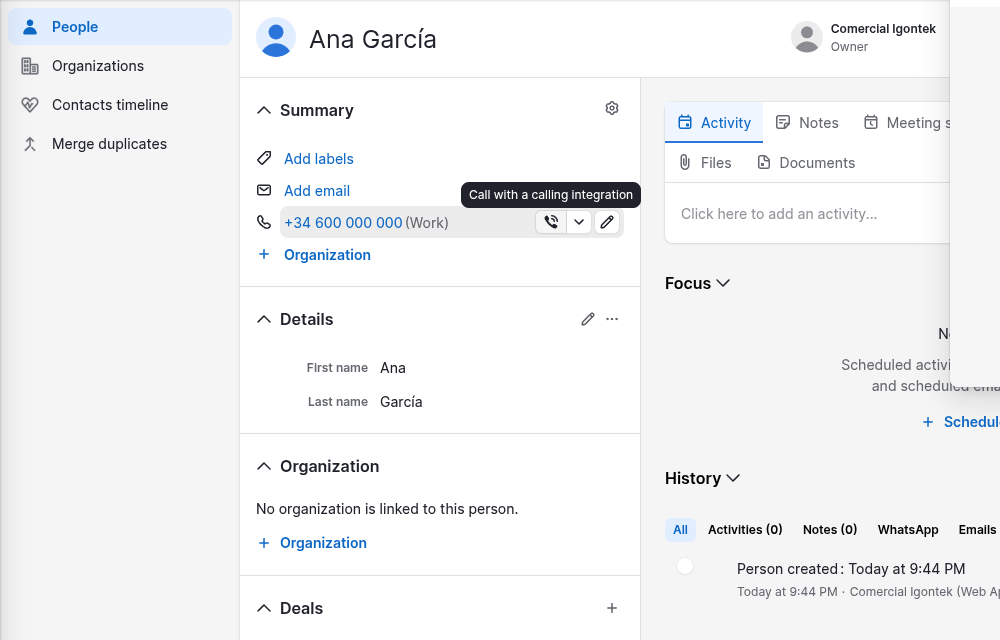
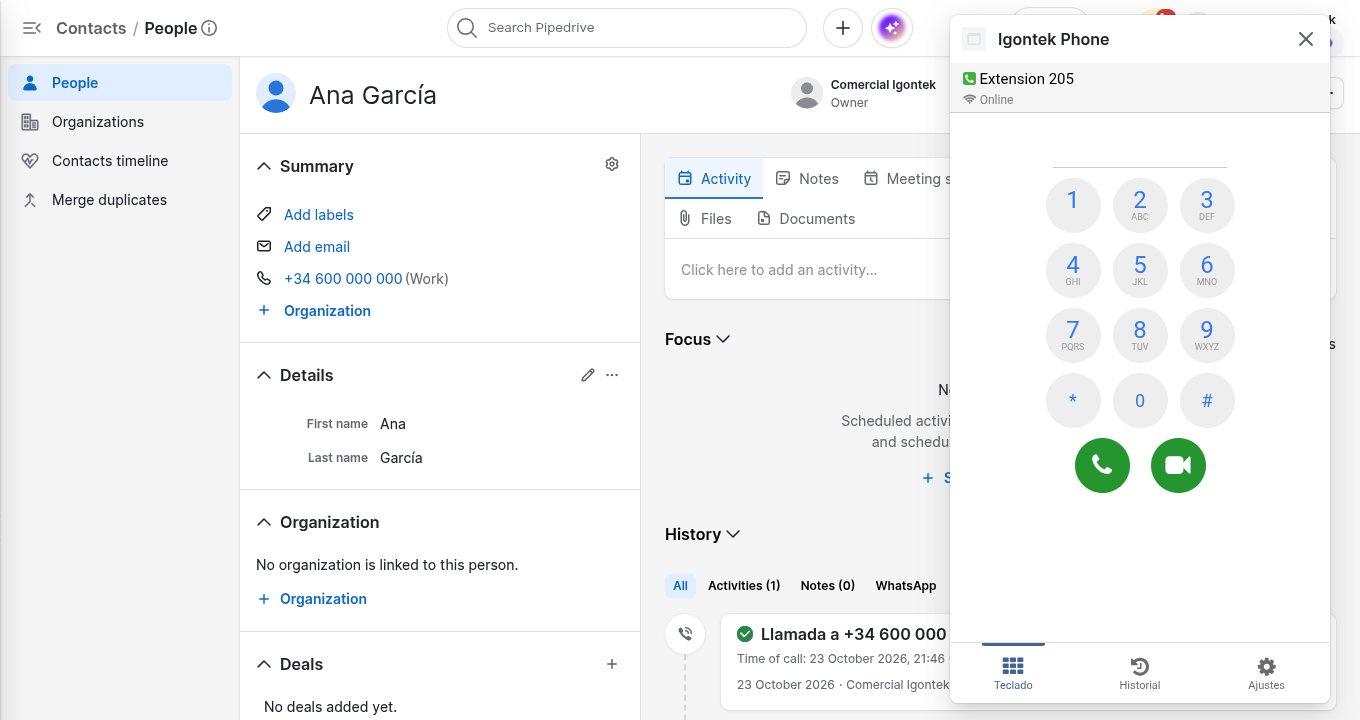
During the call the window shows the person's name and you can mute, hold, send tones, transfer, conference, record and hang up. While the call is active the window can't be closed by mistake; it hides itself when you hang up.
Receive calls
With Pipedrive open, calls to your extension open the Igontek Phone window and show a notification on the top bar icon. If the number belongs to a Pipedrive person, you'll see their name and the call will be logged in their history.
Record
During the call press the ● button to record and press it again to stop; while recording, the phone shows «● Grabando». The recording is stored by IGONTEK's PBX and attached to the call log in Pipedrive.
What is logged in Pipedrive
When you hang up, the call appears in the person's History with its outcome (connected, no answer, busy…), the numbers, the duration and the person, organization or deal it was made from, and the recording when there is one. Pipedrive shows a notification when the call is logged.
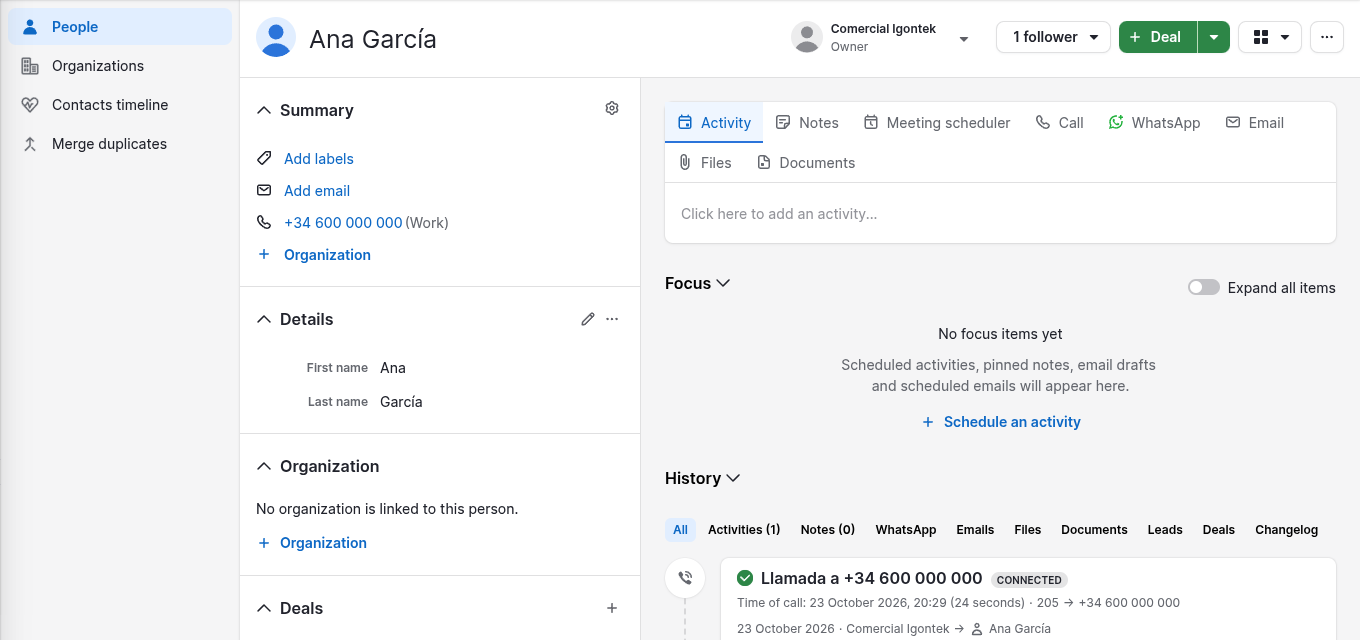
4. Disconnect and uninstall
- Sign out of the phone (Ajustes → Cerrar sesión) to disconnect your extension from that browser.
- Uninstall the app: in Pipedrive go to Settings → Tools and apps → Installed apps, open Igontek Phone and click Uninstall.
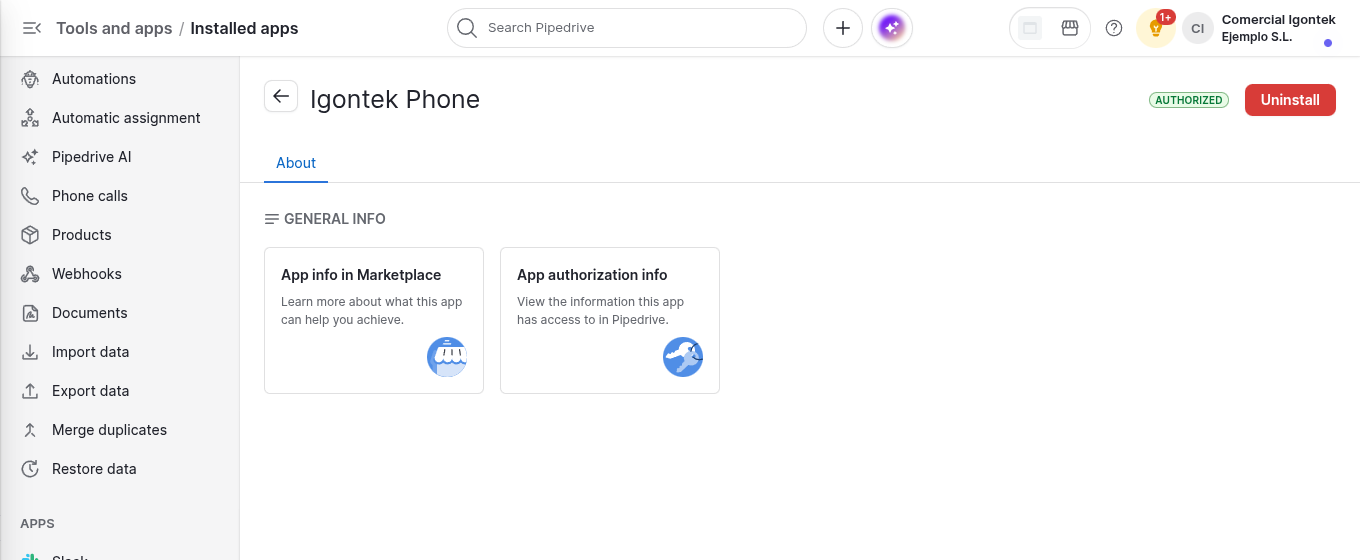
Uninstalling Igontek Phone (sample data).
What happens to your data when you uninstall
- Calls already logged stay in Pipedrive, as they are your Pipedrive account's data.
- Igontek Phone loses access to your account: Pipedrive notifies us of the uninstallation and we delete its access credentials.
- If you want us to delete recordings or any other data, write to info@igontek.com.
More details in the privacy notice. Problems? See the support page.